Tampilkan postingan dengan label all. Tampilkan semua postingan

Sabtu, 01 Oktober 2016

Cara Reset Canon IP2770 Error 5B00

0

Resetter iP2770 ini dikirim oleh sahabat kita di Jambi, dan RESETTER IP 2770 ini sudah Kang Eko coba dan berjalan dengan sempurna. 100% working. Resetter ini bebas password... dan GRATIS


Cara Reset Canon IP2770 Error 5B00

Download Restter canon iP2770 v1074 bebas password di bawah ini :
DOWNLOAD RESETTER IP2770


Jangan lupa matikan download manager, agar downloadnya sukses...

Masuk ke Service Mode iP2770 :


1. Printer dalam keadaan mati dan kabel listrik terpasang.
2. Tekan tombol RESUME 2 detik
kemudian tekan tombol POWER sampai lampu hijau nyala (saat menekan tombol POWER, ...tombol RESUME jgn dilepas dulu)
3. Kemudian lepas tombol RESUME, tapi jangan lepas tombol POWER.
4. Sambil tombol POWER masih tertekan, tekan tombol RESUME 6 kali. Led akan menyala bergantian orange hijau dengan nyala terakhir hijau. (jangan sampai keliru 4x karena printer akan mati total, tapi sifatnya sementara juga) Kemudian ...
5. Lepaskan kedua tombol bersamaan.
6. Led akan blink sebentar kemudian akan nyala HIJAU.
7. Komputer akan mendeteksi device baru, abaikan saja .....
8. Keadaan ini menunjukkan printer iP2770 dalam keadaan SERVICE MODE dan siap direset.

Kemudian jalankan Resetter iP2770 v1074 nya:
1. Exctract File Resetter iP2770.
2. Siapkan 2 kertas di printer (ini untuk print pada waktu proses reset).
3. Jalankan program Resetter iP2770


4. Klik "MAIN", maka printer akan berproses, kemudian iP2770 akan print satu halaman dengan tulisan " D=000.0 "


5. Klik " EEPROM Clear ".
6. Kemudian klik " EEPROM ", dan printer akan print hasil Resetter iP2770. Salah satu barisnya tulisannya sbb:
"TPAGE(TTL=00000)"


7. Matikan Printer dengan menekan tombol POWER.
8. Selesai...

Jika setelah di reset iP2770 blink 16x, Silahkan baca solusinya di http://ekohasan.blogspot.com/2011/11/cara-service-canon-ip2770-blink-16x.html

Jika setelah di reset iP2770 blink 13x, Silahkan baca solusinya di http://ekohasan.blogspot.com/2010/11/cara-mengatasi-canon-ip2770-blink-13x.html

Untuk iP2770 dan MP258 error B200, klik di SINI

Selamat mencoba ... Semoga berhasil ..
Read more

Senin, 25 Juli 2016

Holy Week Greetings!

0

Have a peaceful Holy Week to everyone...

From: the Moderators

Read more

Selasa, 24 Mei 2016

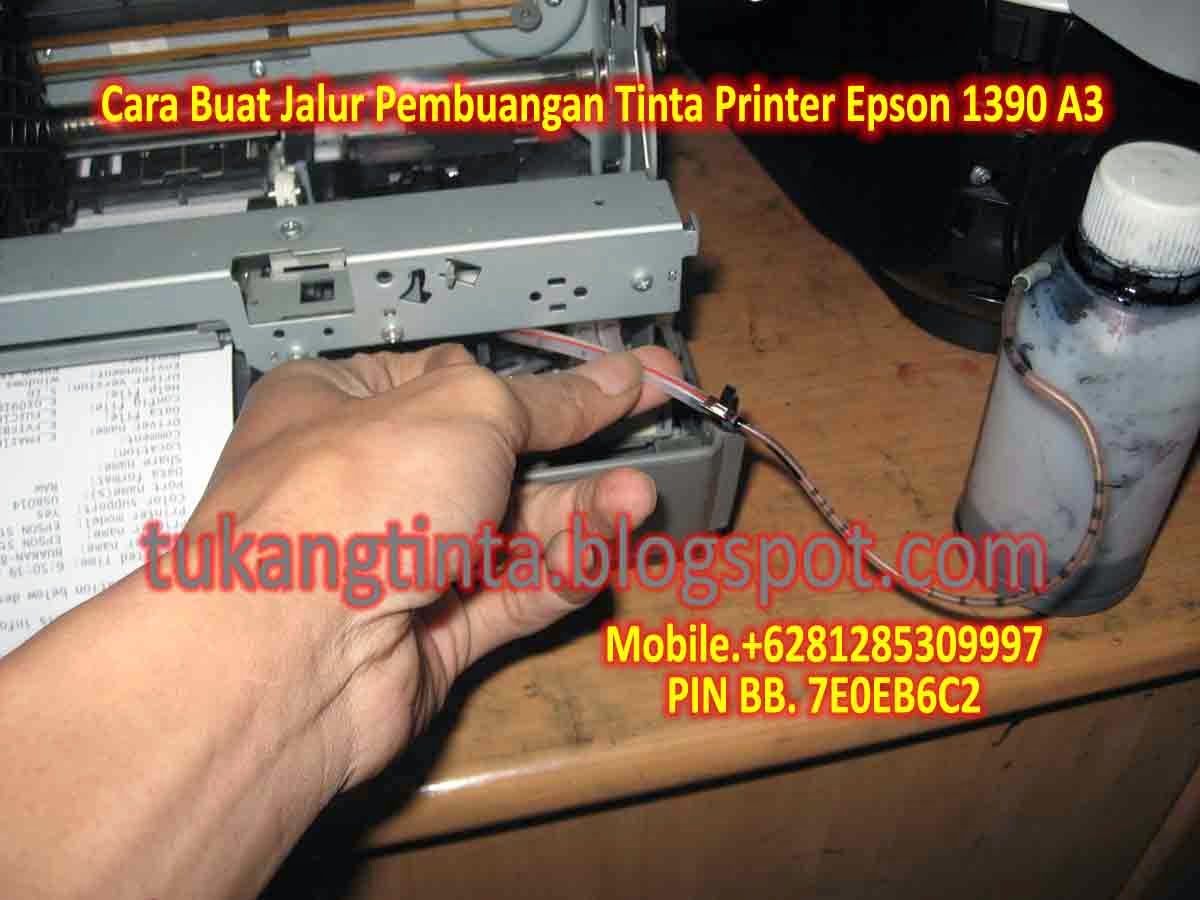
Cara Buat Jalur Pembuangan Tinta Printer Epson 1390 A3

0

http://tukangtinta.blogspot.com/
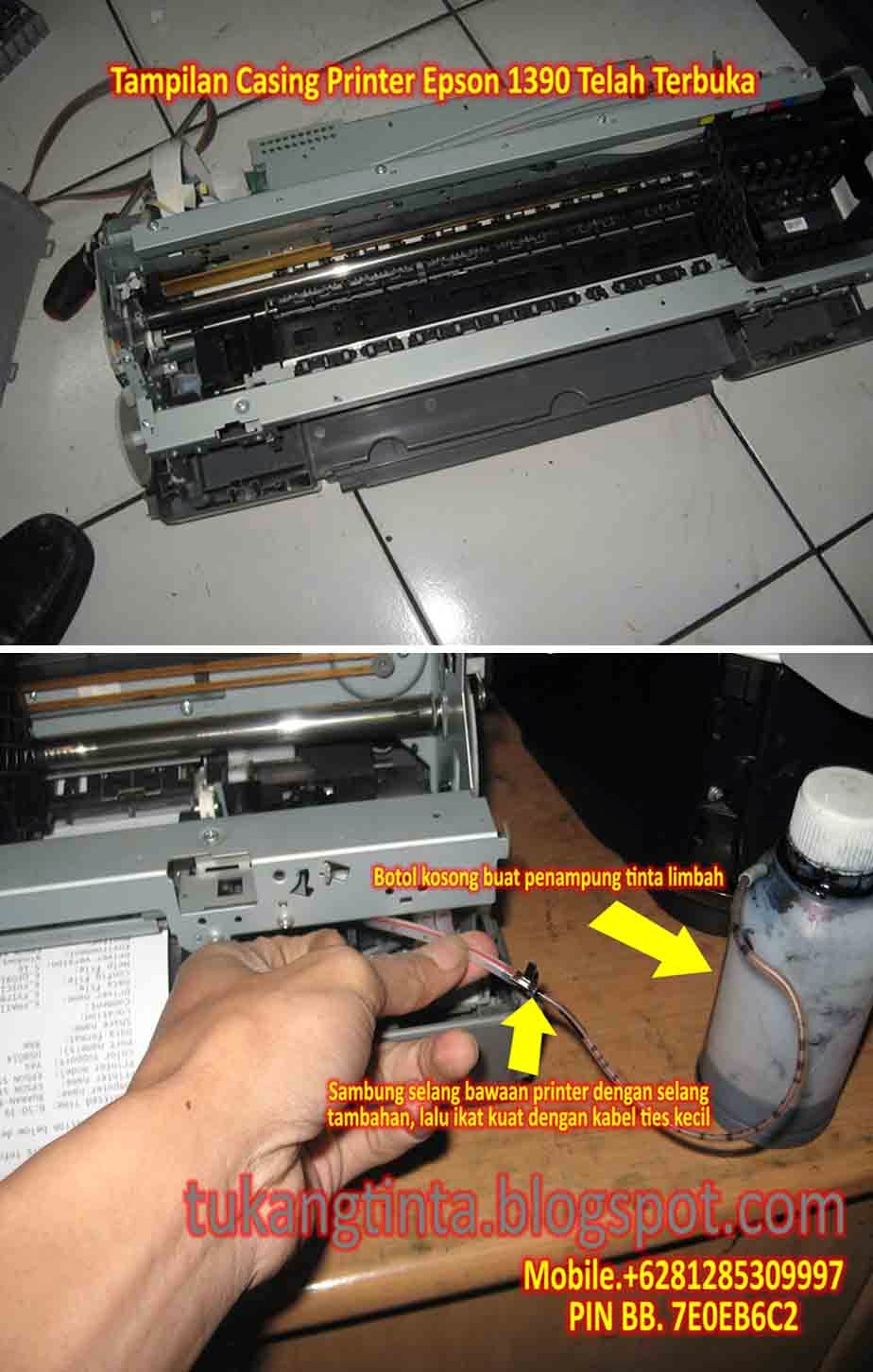
Hello Sobat, Kali ini Bang Mone dari TukangTinta.Com ingin membagikan pengalaman tentang " Cara Buat Jalur Pembuangan Tinta Printer Epson 1390 A3 ", perlu diketahui sobat dimana didalam mesin printer kita ada namanya bak atau busa penampungan tinta limbah dan penampungan tinta limbah akan penuh pada waktunya tergantung aktivitas pemakaian sobat. saat ini Bang Mone ingin berbagi bagaimana cara buat jalur pembuangan tinta limbah pada printer Epson 1390 A3, Langsung saja sobat lihat langkahnya dibawah ini :

Langkah Awal, siapkan peralatan yang dibutuhkan seperti :
  1. Obeng Plus.
  2. Obeng Min.
  3. Gunting.
  4. Selang Tambahan.
  5. Lakban Hitam.
  6. Botol Kosong.
  7. Kabel Tis Kecil.
  8. Bos Infus Uk.3.0 Inch atau Solder Listrik.
http://tukangtinta.blogspot.com/

Pertama buka casing printer sobat dahulu dengan benar, setelah casing printer terbuka, lalu kita cari selang pembuangan limbah bawaan printer kemudian sobat sambung dengan selang tambahan lalu ikat dengan kabel tis kecil, setelah selesai sobat lubangi bagian samping atau dibelakang casing printernya dengan Bor Infus Uk.3.0 Inch atau dengan Solder Listrik, setelah langkah akhir selesai sobat rakit dan pasang kembali casing printer seperti semula lalu tinggal pasang jalur selang yang telah dibuat dimasukkan dibotol kosong.


Selesai.


Sekian artikel Bang Mone dari TukangTinta.Com mengenai " Cara Buat Jalur Pembuangan Tinta Printer Epson 1390 A3 ", Semoga dapat bermanfaat, berguna dan menginspirasi sobat semua.

> Download Driver Printer Epson 1390 A3 klik disini

Salam,
Bang Mone dari TukangTinta.Com
www.tukangtinta.com
Mobile.+6281285309997
PIN BB 7E0EB6C2

Read more

Minggu, 10 April 2016

R290 Reseter

0

Hello everyone,

A lot of people are asking about this reseter. After searching for quite sometime here is a working copy provided by one of our members, manny_chengjr from Philippines. Thanks guys for all the support and please continue to help the group grow by sharing your knowledge and the reseters that you have.

Here is the link, in the meantime we uploaded it in divshare.

[JOIN OUR MAILING LIST TO GET DOWNLOAD INFO]

and mediafire :

[JOIN OUR MAILING LIST TO GET DOWNLOAD INFO]


By the way, CX5500 reseting procedure can be found in our files folder of the yahoo group.

Happy reseting everyone...

the moderators

Read more

Kamis, 23 Januari 2014

Factory Built In CISS Epson L100 and L200 All In One Printer

0

Out of the many countries, the unlikely Indonesia claimed to have the first ever factory built-in Continuous Supply Ink System (CISS) printer. This is integrated on EPSON printer L100 and L200 models. I have search the info about this on the World Wide Web and this is what I found at Epson Indonesia website. It is very unfortunate that EPSON is not making any kind of these printers in the USA, UK, or Malaysia yet. If it is does, I am sure that everyone is will not hesitate to replace their printers as the CISS save so much money.

EPSON L100 (CISS) Built-in Technical Specification:

The EPSON L100 model is with standard function just for black-white and color printing using basic colors such as black, cyan, yellow, and magenta (CYMK). The built-in CISS installed on the printer is capable to produce a staggering 12,000 pages (black) and 6,500 for colors A4 printed papers which is far more productive then printers without CISS installed on it.


EPSON L200 All-In-One (CISS) Built-In Technical Specification:
The EPSON L200 model comes with All-In-One function with standard colors black, cyan, yellow, and magenta as well. Having the CISS installed, it would be so much cost effective to use it for small business and home use.


Ink Colors:

Now you don’t have to worry about the ink compatibility with the printers as it is manufactured by EPSON itself. EPSON also guarantee the quality for color and Photo printing, and most importantly EPSON provide warranty to ensure satisfaction for its end-users. And this make me more excited to get the EPSON L200 model, because all I know that EPSON has produced the best quality printers these days.

Read more

 
Powered by Blogger